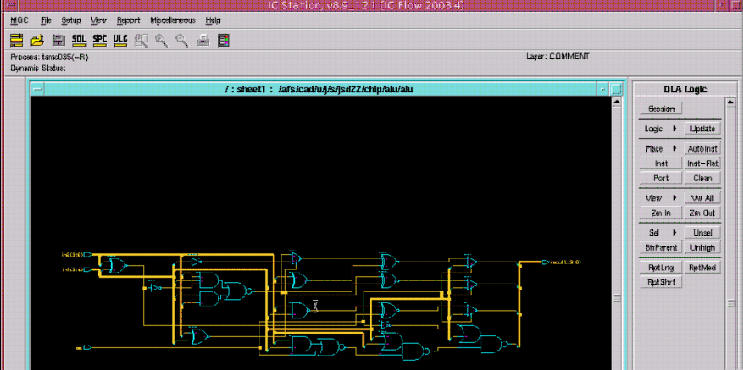
1) Create Cell
4)Automated Component Placement
IC Station: IC station is used to do layout as we did in previous class. This time life is much easier because we will generate automated layout. Type mentor.2002 adk_ic.
1) Create Cell: Go to File--> Cell-->Create, attach library, give process and rule files as you did in custom layout. Select "with connectivity" option and give viewpoint which we have created in last section.
2)Open Schematic in IC: Go to ADK green tab. It will open a new ADK Edit palette on right hand side. Right to "Logic" click "Open". Schematic will appear as shown below
3)Automated Floorplanning: Navigate to Place & Route menu on right hand side. From Place and Route menu select autofp. Retain default options and click OK. Below shows the automated Floorplanning
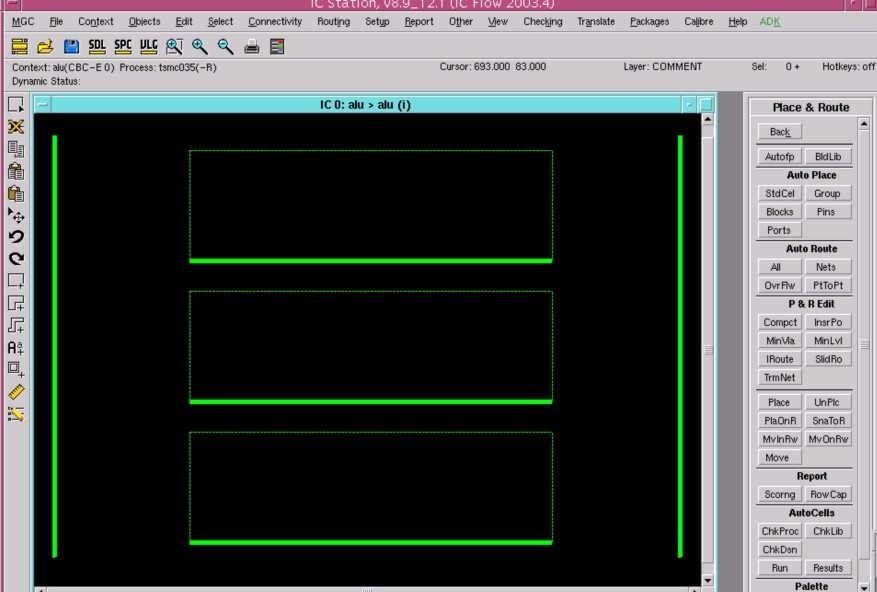
If you are not getting small green squares the logic is wrong. Start cell again.
4) Automated Component Placement: After doing Floorplanning place components from library by selecting StdCel from Auto Place Menu. This will place the components inside the rectangle as shown below
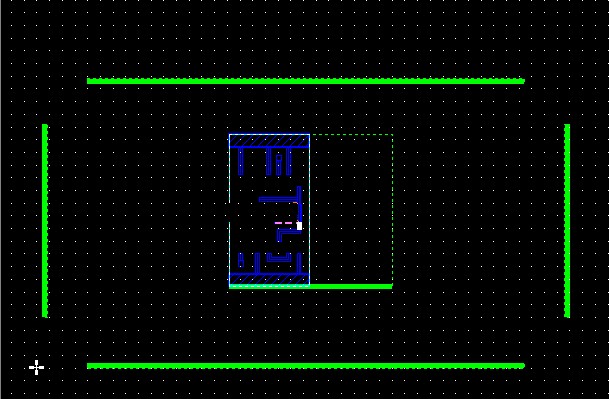
To see transistor level layout select Setup-->IC . From menu select "Peek on View" . Then select View-->Area.
5) Auto Placement of ports: Choose “Ports” under “Autoplc” to place ports. When prompted with the “Auto Ports” menu click “OK” to select the default options. You will see lightly shaded blue or purple areas along the bars at the edge of the layout. These are the ports to your design.
6)Auto Routing: From the “Autorout” section of the “P & R” palette select All, let the default settings. This will route all connections the cells. Several small overflows may still exist. Overflow is unrouted connection . To select all overflows in the design type “check over.” anywhere in the layout window. From Place & Route palette, select “Overflw” under “Autorout”. If the response “An object of type Overflow must be selected” appears in the status block, there are no overflows to route. Otherwise, the overflows should be routed manually.
Note: Layout compactor can be used to further compact the automated layout.
7)DRC Check: To check the design for DRC select "ICRules" from main session palette. Select "Check". After checking for DRC if message says zero errors then DRC is passed otherwise correct the layout manually to remove all the DRC errors as we did in custom layout.
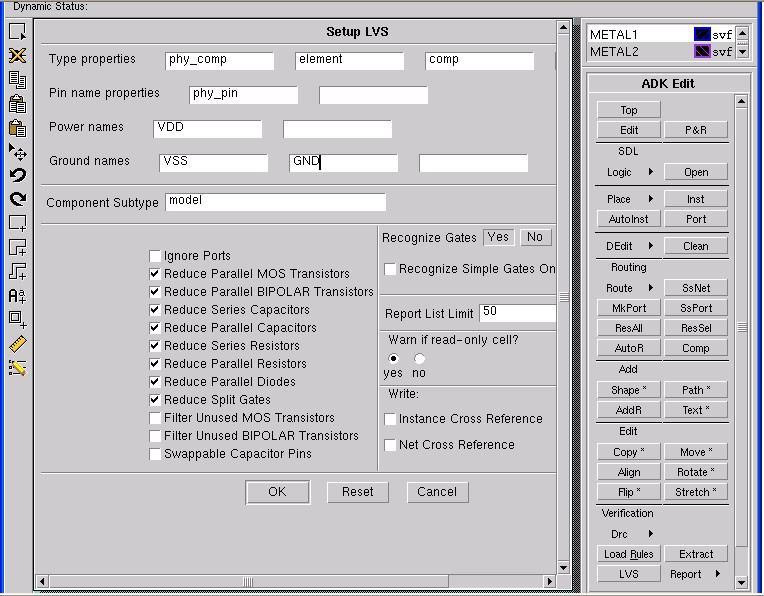
8) LVS Check: From main session palette select "ICtrace(M)". M indidate mask level LVS. Click on LVS in the ICtrace(M) palette and in the form which appears, select the LVS viewpoint using the Navigator button. Fill out the form as indicated below.
After running the LVS check the report by going to LVS-->report.
If you get smiley face you are done otherwise go to transcript to see the error.
Save your design and get a coffee.